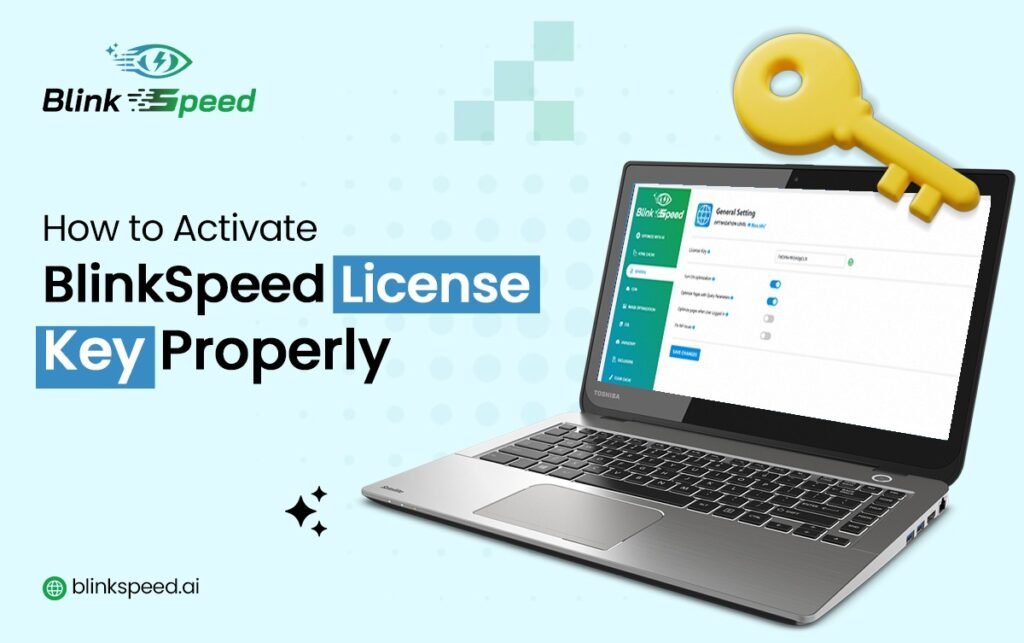
After installing BlinkSpeed, the next critical step is validating your license key. This ensures your website can fully use the features included in your plan and receive priority support access.
A successful premium plugin activation confirms that your setup is complete and ready for optimization. In this guide, you will learn how to activate plugin license, what to verify after setup, and how to handle any license key issue efficiently.
Why activate plugin license setup matters
Think of your plugin license key as a membership pass. When you activate plugin license correctly, BlinkSpeed verifies your purchase and unlocks advanced capabilities.
- Without activation, only limited features may function
- Full BlinkSpeed premium capabilities remain restricted
- Proper activation completes your WordPress plugin license setup
This step is not just technical – it is the foundation of a fully functional and optimized environment.
How to complete premium plugin activation on a single site
Follow the steps below:
- Log in to your WordPress dashboard
- Open BlinkSpeed and go to General Settings
- Locate the license key field
- Paste your license key carefully (no extra spaces)
- Click Activate
- Save your changes
This completes your premium plugin activation process. Once done, your WordPress plugin license setup should be finalized successfully.
What to verify after BlinkSpeed premium setup
After you activate the plugin license, verify that everything is working correctly:
- License status appears as Active
- Critical CSS is generated for the entire site
- Image Optimization is working across the site
- AI Optimization for the whole site is enabled
These indicators confirm that BlinkSpeed premium features are active and your premium plugin activation is successful.
WordPress plugin license setup for multisite
If you are using WordPress Multisite, activation depends on your setup model and domain configuration.
Choose your management model
BlinkSpeed supports two approaches:
- Centralized network-level management
- Per-site management
This decision affects where you activate plugin license and how your WordPress plugin license setup is managed.
Centralized model in Network Admin
Use this model when you want full control from one dashboard.
Process:
- Open Network Admin
- Navigate to BlinkSpeed settings
- Enter your license key
- Complete activate plugin license
- Apply settings across the network
This approach keeps BlinkSpeed premium behavior consistent across all sites.
Per-site model in individual dashboards
Use this model when each site needs separate management.
Process:
- Enable site-level control in Network Admin
- Open each site dashboard
- Navigate to BlinkSpeed
- Enter and activate plugin license for each site
Important note:
- For multisite setups using subfolders, the same license key can be used
- For different domains or subdomains, a separate license key must be purchased or registered
This helps maintain proper WordPress plugin license setup for each site and prevents a future license key issue.
Common license key issue cases and fixes
Most license key issue cases happen due to simple setup problems. Check the following:
- Incorrectly pasted license key
- Domain mismatch with your account
- Expired or inactive subscription
- Hosting firewall blocking outbound requests
- Cache or session conflicts in the admin panel
To resolve a license key issue, verify account and domain first, then retry the activate plugin license process.
Best practices for smooth premium plugin activation
To maintain a stable BlinkSpeed premium environment:
- Keep license ownership and domain mapping documented
- Recheck setup after migration or domain changes
- Keep WordPress and BlinkSpeed updated
- Decide your multisite model early (network vs per-site)
These practices reduce recurring license key issue scenarios and support a reliable WordPress plugin license setup.
FAQs
Can I use one license key for all multisite sites?
It depends on your multisite structure. In subfolder setups, one key can work. With different domains or subdomains, separate registration is usually required to maintain a valid WordPress plugin license setup.
Where should I activate the plugin license in multisite?
Use network-level activation for centralized control and site-level activation for independent control. Both approaches can support proper premium plugin activation.
Why does activation work on one site but fail on another?
This usually points to a domain-mapping license key issue. Check your BlinkSpeed account assignments before retrying.
Does activation improve speed immediately?
Activation unlocks BlinkSpeed premium features. Performance gains come after optimization settings are configured and applied correctly.