BlinkSpeed is a powerful WordPress performance plugin that minifies CSS, defers JavaScript, compresses HTML, converts images to WebP, and serves server-level cached pages all silently in the background, with no manual intervention required for most sites.
But “most” is never “all.”
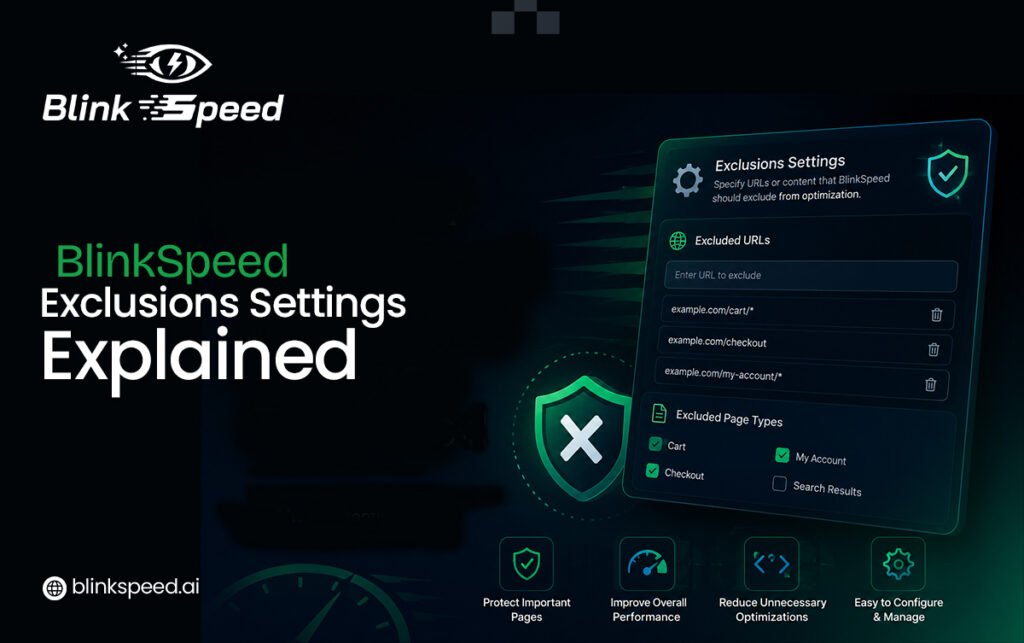
Some pages and assets must load in their original, untouched form. A WooCommerce checkout relying on a specific JavaScript sequence, a third-party chat widget with inline styles that break under minification, a custom slider conflicting with combined CSS these are exactly the situations BlinkSpeed’s Exclusions panel was built for.
Exclusions give you surgical control. You tell the plugin precisely which resources to leave untouched, while everything else benefits from full optimization. The result: a site that’s both fast and fully functional, no broken layouts, no white screens, no plugin conflicts.
Knowing when to use exclusions is what separates a professionally optimized WordPress site from a half-working one. They aren’t a sign of plugin failure; they’re an intentional feature that puts you in control of how aggressively BlinkSpeed touches your assets.
In this guide, you’ll learn:
- How every exclusion type inside BlinkSpeed works
- How to exclude CSS/JS files causing visual or functional issues
- How page exclusions protect your most sensitive URLs
- How to use exclusions as a reliable plugin conflict fix
All without sacrificing a single point of PageSpeed score on the pages that matter most.
When Should You Use WordPress Exclusions?
Not every visual glitch needs an exclusion; sometimes a cache purge does the job. But certain signals clearly call for targeted exclusion rules through BlinkSpeed’s advanced optimization settings.
Checkout and cart pages are the most common triggers. Minified or combined JavaScript frequently disrupts WooCommerce or other e-commerce flows. Adding page exclusions for those URLs is the standard fix.
Broken layouts after optimization is enabled usually mean combined CSS has stripped a vendor prefix or @import rule your theme depends on. Excluding the relevant CSS/JS files restores the layout instantly.
Session-aware pages, login screens, and account dashboards should never be HTML-cached. Dynamic page exclusions ensure these URLs are always served fresh from PHP, keeping logged-in users safe from stale data.
Third-party widgets like live chat tools, booking calendars, and payment iframes rely on inline scripts that need synchronous execution. Excluding those scripts from JS optimization or removing force-lazy-load rules is the go-to fix here.
Hero and above-the-fold images are where exclusions matter for performance, not just compatibility. Lazy-loading your LCP image hurts Core Web Vitals. BlinkSpeed’s media exclusion rules let you pull that one image out of lazy loading while deferring everything else.
Finally, page builders, form plugins, and membership systems (Elementor, Divi, etc.) ship their own JS and CSS assets that often conflict with global optimization. Excluding those specific files avoids disabling BlinkSpeed entirely; you keep the speed gains everywhere else.
How to Exclude CSS JS Files From Optimization
The most frequently used exclusion rules in BlinkSpeed are those that let you exclude CSS JS files from minification, combination, or deferred loading. BlinkSpeed processes these assets at the file level using URL pattern matching. You do not need to specify a full path, just a recognizable fragment of the stylesheet or script URL is enough for the plugin to identify and exclude the correct file.
Accessing the CSS Exclusions Panel
Navigate to BlinkSpeed → Exclusions in your WordPress admin and expand the CSS Exclusions accordion, which contains two key controls.
Exclude Stylesheet URLs from Optimization Enter a URL fragment here to make BlinkSpeed skip minification, combination, and URL rewriting for any matching stylesheet. Use this for third-party CSS with proprietary syntax or complex expressions that break under aggressive optimization.
Force Lazy Load Stylesheet URLs This defers non-critical stylesheets to load on first user interaction instead of during the initial page render. It’s a performance tool, not a compatibility fix ideal for below-the-fold fonts, widget styles, or feature CSS invisible during the initial page view.
Tip: Always use the most unique URL fragment possible: a plugin slug or distinct filename. Overly broad patterns can silently exclude far more files than intended, undermining your optimization gains.
Excluding JavaScript Files: Two Levels of Control
The JS Exclusions section within BlinkSpeed’s advanced optimization settings provides two complementary controls that let you fine-tune which scripts are excluded and in what way.
Force Lazy Load Javascript forces inline JavaScript to load on user interaction rather than at page load. This is appropriate for analytics snippets, chat widgets, cookie consent scripts, and other non-critical trackers that do not affect the visible page render.
Excluding Javascript from Lazyload does the opposite: it removes a JS file from the lazy loading and combination queue entirely, letting it load synchronously in the normal WordPress script order. Use this for jQuery, critical initialization scripts, and payment SDKs where execution order is non-negotiable.
A practical example: if Stripe’s stripe.js breaks when deferred, enter stripe.js in the Exclude Javascript from Lazyload field. BlinkSpeed will load it synchronously while deferring everything else. This is the cleanest plugin conflict fix for payment-related scripts because it targets the single problematic file rather than disabling JS optimization for the whole page.
Common exclusion patterns that cover the most frequent compatibility scenarios include woocommerce/assets/js for WooCommerce scripts, elementor/assets/js for Elementor’s front-end scripts, jquery.min.js to ensure jQuery is never deferred, and stripe.js or paypal/sdk for payment integrations. These patterns entered into the appropriate field in BlinkSpeed’s advanced optimization settings will resolve the majority of plugin conflicts related to JavaScript loading.
Setting Up Page Exclusions in BlinkSpeed
Page exclusions are the broadest type of WordPress exclusions available in BlinkSpeed. Rather than targeting a specific file, they target entire URLs or URL patterns telling the plugin to skip optimization or caching for matching pages entirely. This is essential for dynamic pages, user-specific pages, and pages that generate unique content per session.
Four Page-Level Exclusion Controls
BlinkSpeed offers four page exclusion controls under the Pages Exclusions accordion, each targeting a different layer of optimization.
Exclude Pages from HTML Caching skips BlinkSpeed’s HTML cache for matched URLs, serving them dynamically from PHP instead. This is essential for WooCommerce pages if a cached checkout page serves a stale nonce to a new visitor, the order will fail. Always exclude /cart/, /checkout/, and /my-account/ as a baseline on any e-commerce site.
Exclude Pages from Optimization is a full pipeline bypassing no CSS combination, JS deferral, minification, or HTML processing. Use it sparingly, only when every optimization simultaneously breaks a page. The most common case is a custom page builder that manages its own asset loading and conflicts with BlinkSpeed at every level.
Exclude Pages from CSS Optimization takes a more surgical approach: CSS won’t be combined or minified, but all other optimizations stay active. Reach for this when a CSS animation library breaks under combination while the page’s JavaScript remains safe to process normally.
Exclude Pages from JavaScript Optimization is the JS equivalent JS minification and combination are skipped, while HTML caching, image optimization, and CSS improvements continue. This is usually the first exclusion to try when a page’s interactive functionality breaks after enabling BlinkSpeed, since it isolates JavaScript as the culprit without sacrificing every other performance gain.
How to Add Page Exclusions in BlinkSpeed
Go to BlinkSpeed → Exclusions and expand the Pages Exclusions section. Click Add Rule next to the relevant exclusion type. Enter the slug or partial URL of the page for example /checkout/, /cart/, or /my-account/. Click Save Changes at the bottom of the Exclusions panel. Then purge all caches from the BlinkSpeed admin bar menu and test the excluded page in a private browser window to confirm normal behaviour.
BlinkSpeed’s page exclusions use partial string matching. Entering /checkout/ will match the root checkout URL, any step parameter appended to it, and any child paths beneath it. You do not need to enumerate every variation of a URL; a single slug covering the parent path is sufficient for most page exclusions.
Media and Lazy Load Exclusions
BlinkSpeed automatically applies lazy loading to images, iframes, videos, and audio elements deferring their load until they approach the viewport. For below-the-fold content this is excellent, but applying it to the Largest Contentful Paint element actively harms Core Web Vitals when that element is an above-the-fold hero image or primary banner. The Media Exclusions section within BlinkSpeed’s advanced optimization settings provides two controls for fine-tuning lazy loading behaviour as part of your overall WordPress exclusions strategy.
Preload Media
Enter the URL of any critical resource here a hero image, a web font, or a video poster and BlinkSpeed injects a link rel=”preload” tag for it in the document head. This is not technically an exclusion from optimization; it is a performance-positive addition that ensures the browser fetches the resource at the highest priority before the main render begins. Using this field for your LCP image, combined with excluding it from lazy loading, is one of the highest-impact advanced optimization settings adjustments you can make for Google PageSpeed scores.
Exclude Media from Lazy Loading
Enter any matching text found within an image, iframe, video, or audio tag. This can be a CSS class name, an element ID, a partial URL, or an alt attribute value. BlinkSpeed will skip lazy loading for any media element whose tag markup contains this string. Common WordPress exclusions in this category include the class name of the hero image such as hero-image or hero-banner, a custom class you apply to above-the-fold elements such as above-fold, a fragment of the filename for a critical brand image, or the logo identifier to ensure the site logo never lazy-loads.
If your site’s LCP image is being lazy-loaded by BlinkSpeed and you have not added a media exclusion for it, Google PageSpeed will penalize your performance score. Fixing this particular WordPress exclusion should take priority over most other advanced optimization settings adjustments, because the LCP metric carries significant weight in both Core Web Vitals assessments and Google Search ranking signals.
Using Exclusions as a Plugin Conflict Fix
One of the most practical applications of BlinkSpeed’s exclusion system is diagnosing and resolving plugin conflicts. When another WordPress plugin stops working correctly after BlinkSpeed is activated, the instinctive response is to deactivate BlinkSpeed entirely. But that discards all your performance gains across the entire site. A far better approach is to use targeted WordPress exclusions as your plugin conflict fix, isolating exactly which optimization is causing the incompatibility.
A Systematic Approach to Plugin Conflict Fixing
Start by confirming the issue is visible in a private browser window where no admin cookies are active. This rules out admin-side rendering differences before you make any changes.
Try JS exclusion first. Go to BlinkSpeed → Advanced Optimization → Exclusions → Page Exclusions and add the broken page’s slug under Exclude Pages from Javascript Optimization. JS deferral and combination cause most plugin conflicts. Clear all caches, then test in a private window. If the issue resolves, JavaScript optimization is the culprit and you can narrow it to a file-level exclusion. If the page is still broken, try adding the same slug under Exclude Pages from CSS Optimization many visual glitches caused by combined or minified CSS resolve at this step.
Shift to file-level exclusions once you’ve identified the cause. Enter the specific filename or plugin folder fragment into the relevant exclusion field. This preserves optimization on every other asset while neutralizing the one problematic file a more precise, long-term fix than a full page exclusion.
After each change, purge all caches via BlinkSpeed’s Clear All Cache option and reload with a hard refresh to ensure you’re seeing freshly served content.
Common offenders:
- Gravity Forms / Contact Form 7 conditional scripts conflict with JS combination
- WPBakery / Divi non-standard CSS syntax breaks under minification
- Elementor widgets require a specific script initialization order that JS deferral disrupts
In all three cases, the correct fix is to exclude the specific plugin’s CSS or JS files not to disable optimization globally.
Advanced Optimization Settings: Rules and Patterns
BlinkSpeed’s exclusion engine operates on substring matching. If the string you enter appears anywhere within the asset URL or tag markup, the exclusion applies. Understanding this opens up powerful pattern-based WordPress exclusions that can cover entire plugin asset directories with a single rule in the advanced optimization settings panel.
For WooCommerce JavaScript, entering woocommerce/assets/js in the Exclude Javascript from Lazyload field covers every WooCommerce script in a single rule. For Elementor’s editor environment, adding /?elementor-preview= to the full page exclusion field ensures the live editor is never touched by optimization. To keep the Google Fonts stylesheet from being combined with local stylesheets, entering fonts.googleapis.com in the Exclude Stylesheet URLs field is sufficient. For a hero image excluded from lazy loading, entering the image’s CSS class such as hero-banner or site-logo covers every instance of that image across all pages simultaneously.
Using Multiple Rules Together
Advanced optimization settings frequently require combining multiple exclusion types simultaneously. Consider a WooCommerce store running Elementor on product pages. You might exclude CSS JS files belonging to WooCommerce’s payment gateway, add page exclusions for /checkout/ and /cart/ from HTML caching, exclude Elementor’s preview URL from full optimization, and force-lazy-load the slider CSS on the homepage all at the same time. BlinkSpeed evaluates each rule independently, so multiple WordPress exclusions stack without interfering with each other.
Exclusion Checklist Before Going Live
Whether launching a new site or enabling BlinkSpeed on an existing one, use this checklist to ensure your optimization settings and WordPress exclusions are configured before traffic arrives.
E-commerce pages first. Add /cart/, /checkout/, /my-account/, and /order-received/ to both Exclude from HTML Caching and Exclude Pages From Optimization if you’re running WooCommerce or any e-commerce plugin. This is the single most critical fix for transactional sites and prevents the most damaging caching-related breakage.
Identify your LCP image. Use Google PageSpeed Insights or Chrome’s Performance panel to find the Largest Contentful Paint element. If it’s an image, add its class or filename to Exclude Media from Lazy Loading and optionally to Preload Media for maximum load priority.
Test every interactive form. Open a private browser window with BlinkSpeed fully active and submit each contact form, booking widget, calculator, and login form. If anything fails, use Force Lazy Load or the Exclude CSS/JS Files controls under JS Exclusions to resolve the conflict.
Verify third-party widgets. Live chat tools, pop-up managers, and cookie consent banners often rely on synchronous script loading. If any widget stops functioning after optimization is enabled, apply a file-level JS exclusion as your fix.
Run a final audit. After setting all page and file-level exclusions, run a fresh PageSpeed Insights test from a clean browser. Confirm scores have improved and that excluded pages still perform within an acceptable range for their type.
Frequently Asked Questions
Q1. How do I know which CSS or JS file to exclude in BlinkSpeed?
The fastest way to identify which file to exclude CSS JS files from is to open Chrome DevTools, go to the Console tab, and reload the broken page. JavaScript errors typically reference the originating file by name. For CSS issues, inspect the broken element in the Styles panel and trace the missing or malformed rule back to its source stylesheet. Once you have the original filename or plugin folder, enter that as the pattern in BlinkSpeed’s advanced optimization settings exclusion field.
Q2. Will adding page exclusions hurt my PageSpeed score?
Adding page exclusions to transactional pages like /checkout/ or /my-account/ will not negatively affect your PageSpeed score because Google’s performance audits focus on publicly accessible, non-session-specific URLs. For publicly visible pages, only use WordPress exclusions where absolutely necessary as a plugin conflict fix. Prefer file-level exclusions over full page exclusions to preserve as much optimization as possible on pages that do appear in PageSpeed reports.
Q3. What is the difference between excluding a file and excluding a page in BlinkSpeed?
When you exclude CSS JS files at the file level, only that specific stylesheet or script is left unoptimized across every page that loads it. Every other asset on every other page continues to receive full BlinkSpeed optimization. When you add page exclusions, every asset on that specific URL is excluded from a particular type of optimization. File-level exclusions are more surgical and should always be tried first. Page exclusions are broader and best reserved for pages where multiple assets are causing simultaneous issues.
Q4. My WooCommerce checkout is broken after enabling BlinkSpeed. What should I do?
This is one of the most common plugin conflict scenarios with performance plugins. Go to BlinkSpeed → Exclusions → Pages Exclusions and add /checkout/ and /cart/ to both Exclude pages from HTML caching and Exclude Pages from Javascript Optimization. Then add WooCommerce’s payment gateway scripts identifiable by the pattern woocommerce/assets/js to the Exclude Javascript from Lazyload field under JS Exclusions. Purge all caches and test in a private browser window. This combination of page exclusions and file-level WordPress exclusions resolves the overwhelming majority of WooCommerce conflicts.
Q5. Can I exclude a specific image from lazy loading in BlinkSpeed?
Yes. Navigate to BlinkSpeed → Exclusions → Media Exclusions and expand the section. In the Exclude Media from Lazy Loading field, enter any text that uniquely identifies your image, its CSS class, a portion of its filename, its alt attribute value, or its element ID. BlinkSpeed matches this string against the full image tag and excludes any matching media element from lazy loading. This is the recommended WordPress exclusion for your LCP image and should be one of the first advanced optimization settings you review on any new installation.
Q6. Do BlinkSpeed’s WordPress exclusions apply to the mobile version of my site too?
Yes. BlinkSpeed maintains separate cache files for desktop and mobile using distinct file extensions internally, but exclusion rules are applied universally across all device types. When you exclude CSS JS files or set page exclusions, those rules are enforced for both desktop and mobile visitors. If a specific issue only occurs on mobile, use Chrome’s device emulation mode to identify the mobile-specific asset and add a targeted exclusion for it through BlinkSpeed’s advanced optimization settings.